Apple CarPlay Keeps Failing? Check These Connection Fixes
A data-transfer problem or a stale wireless pairing can stop CarPlay from connecting. Try reversible checks before assuming the car needs repair.
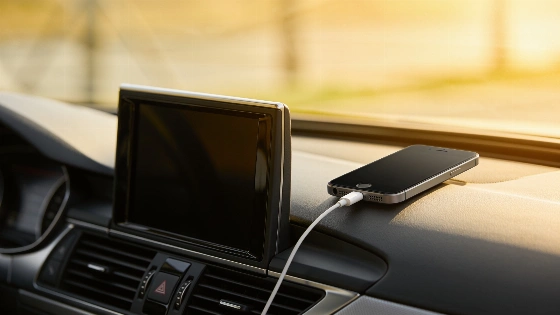
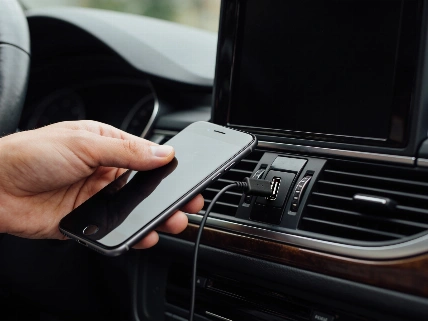
A USB cable can charge an iPhone while failing to carry the data CarPlay needs. Apple supports wired CarPlay through the vehicle's designated USB port, which may be marked with a CarPlay or smartphone icon, and recommends using an Apple USB Cable.
That distinction is easy to miss when the car stops recognizing the phone. A connection failure can stem from the cable, wireless pairing, iPhone settings or the vehicle's infotainment system, so a dealership visit does not have to be the first step. Apple's CarPlay setup instructions cover both USB and wireless connections.
Start with the connection and pairing
For wired CarPlay, try a different cable that supports data transfer and confirm you are using the correct USB port. A cable that still charges the phone may not reliably transfer data. Check for a CarPlay or smartphone icon near the port, and try an Apple USB Cable.
Wireless CarPlay relies on Bluetooth and Wi-Fi. Switch both off and back on, then reconnect the iPhone. If Bluetooth calls and audio work but CarPlay still fails, the Wi-Fi connection CarPlay uses to transfer data could be involved. A fresh pairing may help. Apple's wireless setup requires the stereo to be in wireless or Bluetooth mode, Wi-Fi enabled on the iPhone, and the vehicle's CarPlay network selected with Auto-Join turned on. Readers who need to revisit the setup process can use this guide to wired and wireless CarPlay setup.
Check the iPhone settings before blaming the vehicle. Go to Settings > General > CarPlay and see whether your car appears. If it does, select it and review the available settings. Also check Screen Time restrictions to confirm CarPlay is allowed. If the vehicle is missing, remove its old pairing from both the iPhone and the car's Bluetooth settings, then pair again. For wireless CarPlay, check that the vehicle's network is selected in Wi-Fi settings and Auto-Join is enabled.
Start with the low-risk steps.
- Restart your iPhone.
- Try another USB cable that supports data transfer.
- Remove the car from CarPlay settings and pair it again.
- Restart the infotainment system according to the owner's manual.
- Check for available iOS and vehicle software updates.
- Start the car and make sure Siri is enabled.
When connection checks do not solve it
A software glitch can follow an iOS or infotainment update, though timing alone does not confirm the cause. Restart the iPhone and the vehicle's infotainment system, then check for available updates. If CarPlay stopped working immediately after an update, online support forums or the vehicle manufacturer's website may have reports of a similar compatibility problem. Some bugs require a follow-up update.
Reddit discussions describe inconsistent results. Users in one r/CarPlay thread reported connection failures after updating their iPhones; people in a separate discussion described similar trouble in multiple vehicles. Other posts mention unpredictable disconnects, including with cables. Some users said re-pairing or switching to a wired connection helped, while another reported that troubleshooting and replacing the phone's USB port did not restore CarPlay and eventually replaced the phone. These accounts do not establish a widespread defect.
Hardware becomes a possibility after cable tests, restarts, settings checks and re-pairing fail. The USB port or wireless module may be damaged, or the infotainment unit may be malfunctioning. Try another iPhone in the car: if multiple phones fail to connect, the vehicle may be the source. Freezing or rebooting infotainment can point to a broader vehicle-system issue. In those cases, contact the automaker or a qualified technician. Vehicle-specific activation steps can vary, so consult the owner's manual.
Topics: