How to Fix AirPods That Won't Connect to Your iPhone
A drained case can keep AirPods from appearing on an iPhone. These troubleshooting steps start with charging contacts and Bluetooth, then cover automatic switching, software updates and model-specific pairing resets.
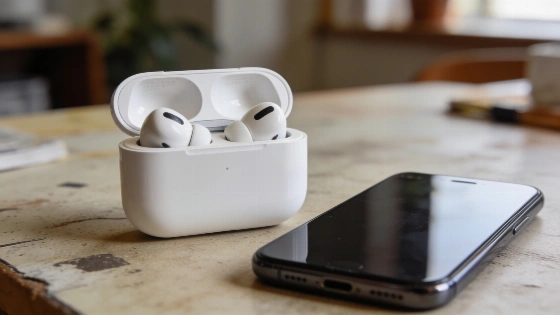
A fully drained case can leave AirPods missing from an iPhone without displaying a low-battery warning. Put the earbuds in the case and plug it in for a few minutes. Check whether any lights come on and whether the connection returns. The fault may lie with the earbuds, charging case, paired iPhone or its operating-system software.
If charging does not help, check the contacts. Dirt or earwax can stop the earbuds from charging while they sit in the case. Clean the AirPods and case with a soft cotton swab, then try connecting again.
Check Bluetooth and automatic switching
Make sure Bluetooth is on in the iPhone's Settings app. With the AirPods in your ears, look for them in the Bluetooth list and tap to connect. You can also select them from the audio output list in Control Center, under the AirPlay button in the media controls.
AirPods linked to your Apple Account can switch between an iPhone, iPad and Mac based on which device is playing audio. A notification on a Mac may trigger a switch; pressing play on the iPhone usually brings the AirPods back.
For a separate iPhone setup task, see this device setup guide.
Update software or reset the connection
Outdated AirPods firmware or an older iOS version may cause connection trouble. On the iPhone, open Settings > General > Software Update. Then find the AirPods menu in Settings and scroll to Version. Compare that firmware version with the latest one listed on Apple's webpage. If an update is available, connect the AirPods to their charger and wait about 30 minutes for them to update automatically.
If the AirPods still do not appear with Bluetooth enabled, reset and pair them again. Put both earbuds in the case, open the lid and enter pairing mode. For AirPods 4, double-tap the front of the case until the light turns white. AirPods 5 and AirPods Pro 3 use the same sequence: double-tap again when the light flashes white, then a third time when it flashes faster. For older models, hold the button on the back of the case for about 15 seconds. With AirPods Max, hold the Digital Crown and ANC button together for 15 seconds. The iPhone should then show instructions to finish pairing.
If these steps fail, the problem may be a hardware failure. Contact Apple Support to request a replacement. It may be free if the AirPods remain within the one-year warranty or are covered by an AppleCare+ plan.
Topics: