How to Fix an iPhone Camera After an iOS Update
Reopen Camera, then restart your iPhone. Install any newer iOS update available for your model. If Apple's Camera works but another app fails, check its permission and update it before arranging service.
A camera problem that appears after an update does not prove the update damaged the hardware. Apple's troubleshooting structure separates possible causes into hardware, operating system, configuration, apps, network conditions and user state. If a camera was replaced, Parts and Service History may offer useful context, but an "Unknown" message alone does not establish the cause.
Start with reversible checks: close and reopen Camera if it is frozen, restart your iPhone, then test the front and rear cameras separately. Apple documents that Burst mode works with both cameras; testing each separately can help you describe which camera or function is affected if you need a diagnosis. Note which camera fails.
Try basic checks before changing settings
On a Face ID iPhone, swipe up from the bottom of the screen and pause to open the app switcher. On iPhone SE, double-click the Home button. Swipe up on the Camera preview, then reopen the app. Use the same steps if a third-party camera app stops responding.
If Camera still fails, restart your iPhone. On a Face ID model, hold the Side button and either Volume button until the power slider appears. On iPhone SE second or third generation, hold the Side button. Drag the slider, wait 30 seconds, then hold the Side button until the Apple logo appears. You can also shut down from Settings > General > Shut Down. If the whole phone is unresponsive, quickly press and release Volume Up, then Volume Down; hold the Side button until the Apple logo appears.
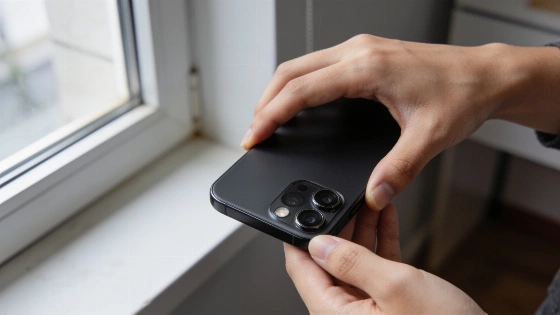
Remove a case, lens film or accessory that blocks the camera or flash or places magnets nearby. Wipe the lenses with a microfiber cloth if images look blurry. If the app itself will not open, cleaning is unlikely to address that symptom.
For a flash issue, test Flashlight in Control Center. If the iPhone is hot, stop camera-intensive activity and move it away from heat; let it return to a normal operating temperature before testing again.
Update iOS and check app access
Back up your iPhone, connect it to power and Wi-Fi, then open Settings > General > Software Update. The screen shows the installed iOS version and any update available for your model. Install the newest release offered and test Camera again. A Mac running macOS Catalina 10.15 or later can install an available update through Finder. On a compatible Windows computer, use Apple Devices.
Apple recommends recording your iPhone's model, iOS version and serial number, found under Settings > General > About, when beginning troubleshooting. Its device troubleshooting guidance treats symptoms as potentially involving hardware, software, configuration, apps, network conditions or user state, rather than attributing them to one cause automatically.
Feature availability can vary across an iOS release: our iOS 27 report noted that Messages suggestions and AI Password Repair were delayed. That timing does not establish a camera fix.
If Apple's Camera works but another app cannot take pictures, open Settings > Privacy & Security > Camera and allow access for that app. Apple says apps must request access to the camera and that permission is controlled for each app. If the app is absent from the list, open its camera feature so it can request permission. Then update the app through App Store. Apple's built-in Camera is principally updated through iOS.
For a Safari website, check Settings > Apps > Safari > Camera and select Ask or Allow. You can also open the site's Page Menu, choose Website Settings, then set Camera to Allow.
Check restrictions and arrange service
If a shortcut stopped working, try Camera from the Home Screen or Lock Screen, or ask Siri to open it. On an iPhone with an Action button, check Settings > Action Button and select a Camera option. Screen Time restrictions can also disable Camera; on iOS 27, check Settings > Screen Time > Content & Privacy Restrictions > Other Features. A work or school device may be restricted by its administrator.
If Camera stalls or cannot save pictures while storage is low, review Settings > General > iPhone Storage before removing anything. Deleting content removes it from the iPhone; offloading removes the selected app. Apple recommends keeping at least 1 GB free to avoid slowdowns.
Keep resets for persistent problems. Reset Location & Privacy clears privacy choices, so you will need to grant app permissions again. Reset All Settings clears affected preferences and connections that you must reconfigure, while keeping photos, messages, apps and documents. Apple says this reset is rarely necessary.
For a replaced camera, inspect Settings > General > About for Parts and Service History. Camera history applies to iPhone 12 models and later running iOS 15.2 or later. On a supported repair that needs completion, connect to Wi-Fi, charge above 20 percent, install the latest iOS and follow Restart & Finish Repair in that section.
Owners of an iPhone 14 Plus with no rear-camera preview can check eligibility for Apple's rear-camera service program using the phone's Serial Number. The program covers certain units manufactured from April 10, 2023, through April 28, 2024, for three years after first retail sale. If the problem persists, contact Apple Support or an Apple Authorized Service Provider and describe which camera fails and whether it was previously replaced.
Topics: