How to Fix amdkmdag.sys Crashes on AMD Radeon PCs
A black screen or frozen display can accompany an amdkmdag.sys error in Windows Reliability Monitor. These six troubleshooting options cover Radeon tuning, driver rollback and reinstall steps, Windows Update conflicts, chipset drivers, and BIOS updates.
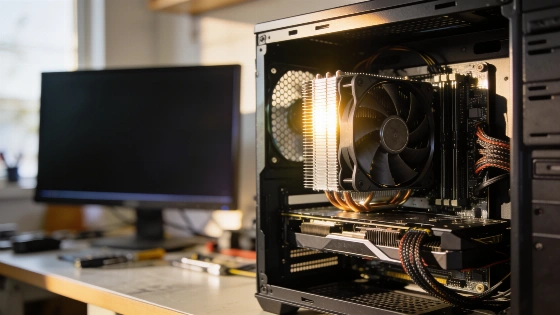
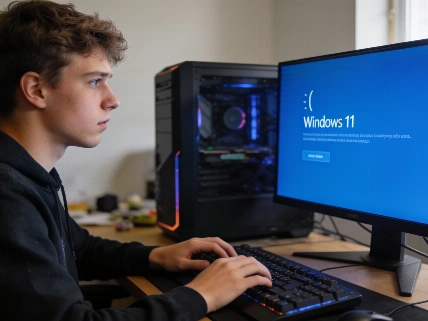
A display can go black mid-game while Windows Reliability Monitor records an error involving amdkmdag.sys, an essential AMD Radeon graphics driver component. The same problem may leave the PC unresponsive or cause an application to crash. Windows uses Timeout Detection and Recovery (TDR) to detect when the GPU or display driver stops completing work within the expected interval, then attempts to reset the graphics stack and restore a responsive desktop. As Microsoft explains in its TDR documentation, an amdkmdag.sys entry identifies the AMD kernel-mode display-driver component involved in the failure; by itself, it does not establish that the graphics card is defective.
Try the fixes in order and stop when the system is stable. Start by removing custom GPU tuning, then address the driver installation and Windows Update before moving to platform firmware or hardware checks.
Start with GPU settings and driver changes
Reset AMD Radeon graphics settings
Overclocking, undervolting, or custom memory tuning in AMD Software: Adrenalin Edition can make a graphics card unstable if it cannot operate reliably at the selected settings. Restore the defaults first. AMD's system-management documentation lists separate controls for resetting GPU state, clocks and overdrive, fans, and power profiles, showing that tuning settings are distinct from the driver package.
- Open AMD Software: Adrenalin Edition and select the Performance tab, then Tuning.
- Choose Default or Reset in the tuning controls. The label depends on your Adrenalin version.
- Confirm the change and restart the PC.
If you use a third-party GPU utility such as MSI Afterburner, disable its tuning profile and close the application temporarily. If the crashes stop, the previous settings may have been unstable. Keep the defaults or reapply changes gradually while checking stability after each adjustment.
Roll back the AMD graphics driver
If the problem began after a driver update, the new version may be incompatible with your GPU, Windows build, or a particular game. Windows may still have the previous driver package. AMD release notes list package support by Windows version and Radeon product generation, while their fixed-issues sections describe problems tied to specific drivers and conditions; compare the installed version and the crash circumstances with those notes.
- Right-click Start and open Device Manager.
- Expand Display adapters, right-click the AMD Radeon graphics card, and select Properties.
- Open the Driver tab and choose Roll Back Driver if the option is available.
- Follow the on-screen instructions and restart the PC.
A missing or grayed-out Roll Back Driver option means Windows may not have the earlier package available. Driver Easy also offers driver scanning, backup, and recovery features. Its instructions say to scan, select the flagged AMD GPU, and use Activate & Update; the Update All option applies to other missing or outdated drivers as well. Its Driver Recovery feature is under Tools > Driver Recovery.
For a separate report involving a driver rollback, read the ASUS TUF A15 case, where the rollback was reported to stop the crashes.
Clean-install the AMD graphics driver
If rollback does not help, or the existing installation may be corrupted, remove the current AMD graphics software before installing a fresh driver package. This can address conflicts left by an incomplete or damaged installation. Check that the package supports the specific Radeon model and Windows version. On laptops and prebuilt PCs, manufacturers may customize drivers for system-specific displays, power controls, hybrid graphics, or firmware; AMD recommends trying the computer manufacturer's validated driver if its standard package causes compatibility problems.
- Download AMD Cleanup Utility from AMD's official website.
- Temporarily disconnect the PC from the Internet so Windows Update does not install another display driver during cleanup.
- Run the utility. If prompted, allow it to restart Windows in Safe Mode.
- Follow the prompts to remove the AMD graphics drivers and software, then restart when asked.
- Install the AMD graphics driver package from AMD's official website, or use Driver Easy to update it, then restart Windows and reconnect to the Internet.
AMD recommends using the AMD Cleanup Utility when downgrading to an earlier Adrenalin version. Display Driver Uninstaller (DDU) is another removal option. The referenced guide is titled How to reinstall GPU drivers with DDU. After installation, test the game or application that triggered the problem; repeating the same cleanup without a change is unlikely to add useful information.
Check Windows Update and chipset drivers
Prevent Windows Update from replacing the display driver
Windows Update can install a different AMD display driver after a manual installation. Compare the installed version with the version you intended to use before changing update settings.
- Open Device Manager, expand Display adapters, and open Properties for the AMD Radeon card.
- On the Driver tab, note the driver version and date. Compare them with the version you installed.
- On supported Windows Pro and Enterprise editions, press the Windows logo key + R, enter gpedit.msc, and press Enter.
- Go to Computer Configuration > Administrative Templates > Windows Components > Windows Update > Manage updates offered from Windows Update.
- Open Do not include drivers with Windows Updates, select Enabled, then choose Apply and OK. Restart the PC.
The Local Group Policy Editor policy is not available on standard Windows Home installations. The supplied material points Home users to a Registry Editor alternative but does not provide its steps. Disabling driver delivery through Windows Update can also withhold useful updates, so check for device-driver updates manually if you use this policy. It prevents unwanted replacements; it does not repair a corrupted driver or fix a hardware fault.
Update the AMD chipset drivers
Outdated or incompatible chipset drivers may contribute to system instability. If the earlier steps have not resolved the crash, download the appropriate chipset package from the motherboard manufacturer's official website, whether the system uses AMD or Intel chipset drivers. Driver Easy is also presented as an automatic update option. Test the affected application after installing the update.
Check BIOS updates and hardware
Look for a relevant BIOS update
The motherboard BIOS initializes hardware during startup and helps manage communication among system components. An outdated BIOS may contribute to compatibility or stability problems involving the motherboard, CPU, memory, or PCIe devices. Check for a relevant update if the crashes continue; the referenced guide is titled Updating the BIOS on Your Windows PC. Restart Windows afterward and confirm that it recognizes the AMD graphics card.
If driver and firmware changes do not resolve the problem, check GPU temperatures and power connections. On supported systems, GPU-accessible memory allocation can also involve platform settings such as UMA carveout, beyond dedicated graphics memory. An amdkmdag.sys error alone does not prove that the Radeon card has failed.
Topics: