
BEDaisy.sys blue screen crash reveals deeper Windows problems
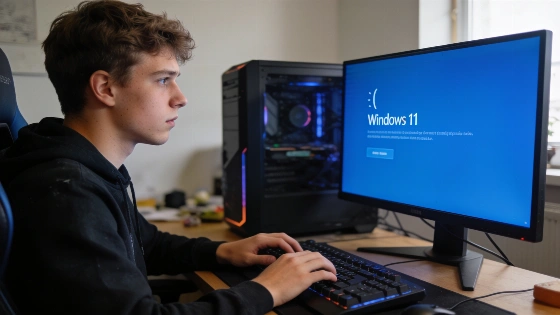
BEDaisy.sys blue screens don't just ruin a game-they point to trouble lurking in Windows itself. For many on Windows 11 or 10, the crash hits out of nowhere, often right as BattlEye anti-cheat loads. The only clue is a PAGE_FAULT_IN_NONPAGED_AREA stop code and a frozen system. But this isn't just bad luck. Usually, something deeper is broken in the kernel, and BattlEye is just the first thing to trip over it.
What makes these crashes so maddening is how random they seem. One day, your game loads fine. The next, you're staring at a blue screen before you even see the menu. The real cause could be anything: a corrupted anti-cheat install, a rogue driver, clashing software, or even a subtle memory timing issue. The crash is just the warning light, not the root problem.
Microsoft officially describes the PAGE_FAULT_IN_NONPAGED_AREA (0x50) stop code as a memory access error, which can be caused by faulty drivers, memory corruption, or hardware issues.
How to track down what's really behind BEDaisy.sys crashes
BEDaisy.sys is part of BattlEye's anti-cheat system, but the blue screen usually means something else is wrong. A broken BattlEye install is a common trigger, especially after a failed update or interrupted setup. To fix this, go to your game's folder and run UninstallBE.bat, then InstallBE.bat as admin. This wipes out bad files and gives you a clean slate. If your game also uses Ubisoft Anti-Cheat, you'll need to repair it through the Sentinel folder too.
There's no official word from BattlEye or Microsoft saying BEDaisy.sys alone causes Windows instability, or that running the game as admin will fix the PAGE_FAULT_IN_NONPAGED_AREA error. Claims that admin rights are a cure-all aren't backed by Microsoft or BattlEye documentation.
Windows Updates can also throw a wrench in the works. If the blue screen started after a recent update, try rolling back the latest patch in Settings to see if that's the culprit. Sometimes, you just have to wait for a new build or patch to sort things out. According to official Windows update documentation, recent updates have fixed a range of system bugs, but there's no mention of a BEDaisy.sys-specific fix.
Driver and software clashes: the usual suspects
Low-level drivers from other anti-cheat tools, hardware monitors, RGB controllers, VPNs, or virtual audio apps can butt heads with BattlEye deep in Windows. Riot Vanguard is a well-known troublemaker here. Uninstalling any new system-level software-especially those that dig into Windows-can mean the difference between endless blue screens and a stable PC.
Audio and USB drivers often cause problems too. Outdated or virtual audio drivers like VB-Audio Virtual Cable or Razer Surround can spark memory conflicts with BattlEye. Removing or updating these drivers in Device Manager, or running a full scan with a tool like Driver Easy, can clear up hidden clashes. If a driver update triggered the crash, rolling back to an older version might bring back stability.
Microsoft recommends checking system logs, running Windows Memory Diagnostic, booting in Safe Mode, and disabling memory overclocking to distinguish between driver issues and hardware faults when troubleshooting blue screen errors.
Windows security features can also get in the way. Memory Integrity, meant to block untrusted code, sometimes blocks BattlEye itself. Turning off Memory Integrity in Core Isolation settings can help you pin down the problem, but this is only a stopgap-updating drivers is the real fix.
Even BIOS settings like XMP (Intel) or EXPO (AMD) can throw off memory timings, especially when gaming. Disabling these RAM overclock profiles in BIOS may stop the micro-glitches that set off BEDaisy.sys crashes. Always write down your original settings before making changes.
When BEDaisy.sys is just the tip of the iceberg
If none of these steps work, the BEDaisy.sys crash is probably just the first sign of a bigger system problem. Watch for other red flags: random app crashes, stutters, or blue screens outside of games. At this stage, it's time for a full checkup-run SFC and DISM to repair Windows files, use Windows Memory Diagnostic or MemTest86 for RAM, and check SSD or HDD health with CrystalDiskInfo. Keep an eye on CPU and GPU temperatures when gaming, and unplug any extra USB devices. If your motherboard maker has a BIOS update for stability or memory compatibility, installing it could solve the root issue.
BEDaisy.sys blue screens aren't rare in Windows. Similar driver-level clashes have caused headaches elsewhere, like recent reports of legacy apps crashing from audio driver bugs. The pattern is clear: when Windows kernel drivers collide, the fallout usually spreads beyond just one app or game.
For anyone hit by the BEDaisy.sys crash, there's no magic button to fix it. You'll need to work through anti-cheat reinstalls, weed out bad drivers, roll back updates, and sometimes dig into BIOS settings. The real takeaway? Blue screens like this are rarely one-off glitches. They're Windows' way of warning you about deeper trouble. Ignoring them only sets you up for more pain later. For gamers and power users, treating the BEDaisy.sys crash as a wake-up call-not just a hassle-will save a lot more time and frustration than any quick fix ever could.