
Snipping Tool glitches block screenshots for Windows 11 users
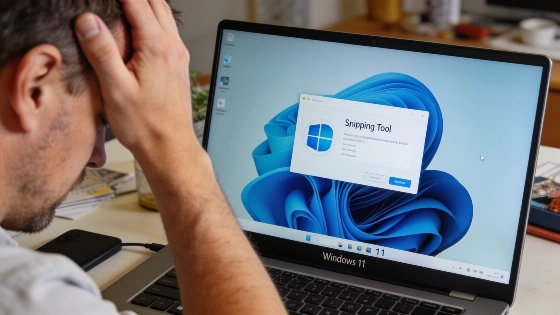
Snipping Tool has become a headache for many on Windows 11. The app sometimes refuses to open or crashes as soon as users try to grab a screenshot. The usual Windows + Shift + S shortcut stops responding, and the built-in screenshot process grinds to a halt. For anyone who depends on quick captures to share work or document issues, this kind of failure cuts straight into daily output.
Digging into the root causes, the breakdowns often come from corrupted app files or an outdated Snipping Tool version. Deeper trouble can lurk in damaged Windows system files or a graphics driver that no longer plays nice. Occasionally, a background app interferes, or a recent Windows update triggers a new conflict. The outcome is predictable: Snipping Tool either freezes, does nothing, or crashes on launch.
Microsoft Q&A records a case where over 300 managed Windows 11 devices experienced simultaneous failures in both Paint and Snipping Tool after a Data Loss Prevention policy restricted clipboard actions related to ChatGPT.
How to get Snipping Tool working again
Restoring the app starts with Windows 11's built-in repair and reset tools. Open Settings, go to Apps, select Snipping Tool, and hit Advanced options. Try Repair first-this keeps your app data and often clears up minor glitches. If that does nothing, use Reset. This wipes the app's data and returns it to default, which can clear deeper corruption.
If Snipping Tool still fails, check for updates in the Microsoft Store. Outdated versions cause plenty of headaches, and a quick update can patch known bugs. After updating, restart the PC to flush out any stuck processes that might block the app.
When problems persist, corrupted Windows system files may be to blame. Microsoft's own playbook calls for running DISM and System File Checker (SFC) from an elevated Command Prompt. These tools scan and repair damaged Windows components, which can bring built-in apps like Snipping Tool back to life. Always run DISM before SFC, since DISM can supply the files SFC needs to finish repairs.
Microsoft support guidance in a related case recommends assigning a Data Loss Prevention (DLP) policy exclusion to a small pilot group and checking whether Paint and Snipping Tool functionality returns, suggesting that policy scope may be the root cause rather than app corruption.
Digging deeper: advanced fixes
If the app still refuses to cooperate, a clean boot can help. Disabling all non-Microsoft services and startup apps strips the system down to basics. If Snipping Tool works in this state, re-enable services one at a time to find the troublemaker.
Graphics drivers can also trip up screen capture. Updating display adapter drivers through Device Manager or the manufacturer's support site can clear up compatibility issues. If nothing else works, uninstalling and reinstalling Snipping Tool through Settings and the Microsoft Store gives the app a fresh start.
Some users hit these problems right after a Windows update. In those cases, Microsoft's release notes sometimes list known issues. Waiting for an official fix or workaround may be the only option.
Key facts for users
Snipping Tool failures on Windows 11 rarely happen by chance. They almost always trace back to a specific cause-corrupted files, outdated software, system conflicts, or driver trouble. The most reliable fixes are built into Windows: Repair, Reset, update, and system file checks. Clean boots and driver updates tackle the less obvious but equally stubborn conflicts.
Windows 10 users facing similar Snipping Tool crashes can find a separate guide. Most people can restore screenshot features with a handful of targeted steps, without risky system tweaks or third-party apps. Even basic Windows tools can break, but the fixes are usually close at hand for anyone willing to follow a structured troubleshooting process.
According to Microsoft Q&A documentation, some users report screenshots missing from Windows Clipboard history. Disabling Clipboard history, restarting Windows, and turning it back on may fix this. Using the Win + Shift + S shortcut is also recommended instead of copying from Paint.