
Steam Deck stick drift fixes that actually work in SteamOS
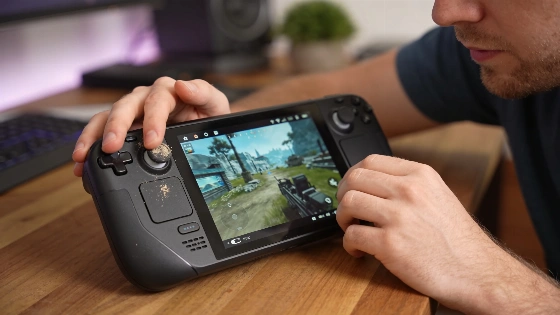
Your Steam Deck's thumbstick starts drifting. Suddenly, your character walks off or the camera spins up. You're not even touching the controls. For gamers, it's sabotage. But most stick drift on the Steam Deck isn't fatal. You can usually fix it in minutes with SteamOS and a can of air.
In September 2026, Valve released SteamOS 3.8.28, which included major updates to the hid_steam driver and expanded support for new input devices, directly addressing controller issues at the system level.
Start with a real test. Lay your Steam Deck flat. Unplug every other controller. Open the controller test screen in SteamOS settings. Watch the stick's dot. If it sits off-center or moves by itself, you've got drift. If it only happens in one game, it's almost always a software setting, not hardware trouble.
If the visualizer shows drift, recalibration is your first move. SteamOS has a built-in calibration tool under Settings > Controller. Follow the steps. Don't touch the stick at first, then roll it around the edge. If you don't see calibration, use the `thumbstick_cal` tool in Desktop Mode. This step alone fixes most cases where the stick's "center" shifted after a drop or heavy use. Independent tech sites confirm both the built-in calibration and the fallback tool work for most users, following current SteamOS instructions.
Valve's official SteamOS 3.8.28 release notes highlight not only stability and compatibility improvements, but also specific changes to the hid_steam driver, including support for the new Steam Controller (2026) in native apps without Steam running. This demonstrates Valve's ongoing commitment to updating the input stack at the system level for Steam Deck users.
Sometimes drift pops up after a SteamOS update. Or maybe you haven't updated in months. Valve pushes controller fixes through system updates. Connect to Wi-Fi, check for updates in Settings > System, and make sure you're on the Stable channel. A quick update and reboot can wipe out drift that calibration alone can't fix. Steam Deck's update path lets you switch to the beta channel in Settings → System → System Update Channel. That way, you get input and controller fixes through SteamOS updates.
If drift only shows up in one game, Steam Input is the likely culprit. Each game can have its own layout, deadzone, and sensitivity. Reset the game's controller layout to a Valve default. Check the in-game stick sensitivity. This often clears up phantom drift that never appears in the system test.
If calibration and software tweaks don't work, check for physical signs. Feel for grit. Look for dust or crumbs around the stick base. Power off the Deck. Grab a can of compressed air. Spray short bursts around the stick while you rotate it. Never use liquids. Don't take the Deck apart yet. After cleaning, recalibrate and test again.
If drift comes back in days or calibration never holds, you might have internal wear or stubborn debris. If your Deck is still under warranty, contact Valve. Their hardware warranty covers defects for one year from shipment. If you're out of warranty, Valve and iFixit sell official replacement sticks. Aftermarket Hall-effect or TMR sticks are out there for those who want to go further.
Prevention matters. Use a hard case. Keep snacks away. Don't store your Deck face-down. Recalibrate after any drop. Stay on the Stable update channel. Go easy on the sticks during intense play. These steps help your Deck last longer.
Stick drift on the Steam Deck is annoying. But it's rarely a reason to panic or grab a screwdriver. Valve's software tools and a little cleaning fix most cases. The built-in diagnostics make it easy to tell hardware faults from simple settings errors. For most users, the fix is free, fast, and keeps your warranty safe. That's the kind of repair story gamers need.