How to Stop a Chromebook from Crashing or Freezing
Start with low-risk checks, such as closing tabs and updating ChromeOS, then investigate software or device problems. Back up local files before any reset or recovery step that could erase them.
Powerwash and ChromeOS recovery erase local data, while a hardware reset can lose some files in Downloads. Back up anything stored locally before trying those steps; begin with checks that are easier to reverse.
A frozen page or app may be using too much memory, or an extension or troublesome webpage may be involved. Test after each change so you can identify what affects the Chromebook before considering a reset.
Restore responsiveness and reduce the load
If one page or app is stuck, press Shift + Esc to open Task manager. You can also open Chrome and choose More > More tools > Task manager. The Task Manager shows resource use by individual processes, helping you spot a tab or extension using unusually high CPU or memory. Select the affected page, extension or app, then choose End process. Unsaved work in that process may be lost. Check whether the rest of the Chromebook responds.
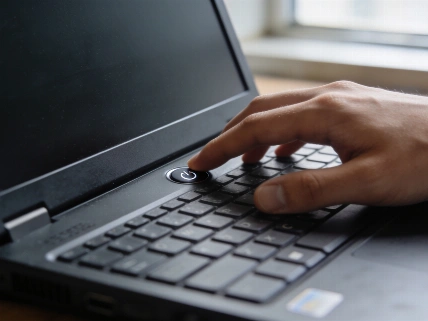
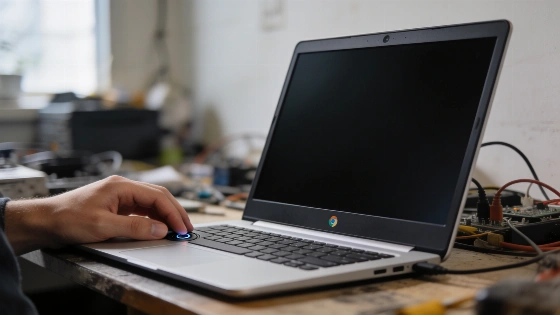
For a broader freeze, select the time, open Power, then choose Restart. If the menu will not open, Google's alternatives include holding Power for three seconds, or holding it until the menu appears and choosing Power off before turning the Chromebook on again. Button behavior varies by model.
Close unused tabs, apps and windows, then test again. If one webpage triggers the problem, open its tab and press Ctrl + Shift + R to refresh it. When a page crashes under memory pressure, stop unwanted tasks before reloading. If the problem affects only one page, Google also recommends testing it in a clean browser window and checking whether extensions are interfering.
Chrome's Memory Saver can reduce resources used by inactive tabs. In Chrome, open More > Settings > Performance, turn on Memory Saver and choose Balanced, the recommended option. Inactive tabs release memory and reload when you return to them. Google describes the feature in its Memory Saver guidance.
To compare tab memory use, go to Chrome's More > Settings > Appearance. Under Tab hover preview card, turn on Show tab memory usage, then hover over tabs. Close tabs that are using resources and test again.
Identify software problems and check device health
Connect the Chromebook to Wi-Fi and power. Select the time, then open Settings > About ChromeOS > Check for updates. Let the download finish and choose Restart in the update notification. To check support, open Settings > About ChromeOS > Additional details and read Update schedule. After support ends, ordinary update checks cannot provide newer supported releases. Contact an administrator if updates are managed.
If crashes began after adding an extension, open the Extensions page from Chrome's More menu. Turn extensions off one at a time and test after each change. Removing one uninstalls it from Chrome; once you identify a suspect, select its Remove button and confirm. To remove an app, open Launcher, right-click it and choose Uninstall or Remove from Chrome, whichever appears. Confirm the uninstall and test before reinstalling. Ask an administrator to handle changes to organization-controlled apps or extensions.
For a repeatedly crashing webpage, open Chrome's More > New Incognito window and visit it there. Many extensions are disabled in Incognito unless they have been allowed there. If the page works, disable extensions at chrome://extensions and re-allow them one at a time to identify a conflict. Clearing stored browsing data may also help. Open More > Delete browsing data, set Time range to All time, select Cookies and other site data and Cached images and files, then choose Delete data. This removes that stored data and can sign you out of websites. Deselect other data categories before deleting. Google's Chrome troubleshooting guidance also covers extension and site-data checks.
If policy blocks Incognito, or you need a broader comparison, use Guest browsing when available. Select the time, then Power > Sign out, and choose Browse as Guest at the sign-in screen. If the problem disappears in Guest, extensions, synced settings or data in the signed-in profile may be involved. Guest mode does not include installed Android apps or saved account preferences, so smoother browsing is a clue to investigate your normal session, not proof of a cause. If Guest browsing is disabled, check storage instead. Guest downloads and browsing data are deleted when you end the session; choose Exit guest when finished.
Check storage if the Chromebook is slow, warns that space is low or has Android-app problems. Open Settings > System preferences > Storage management and review Downloads, Offline files, Browsing data, Android storage and Other users. Deleting local files removes those copies. Move anything you need to Google Lead or external storage first, then remove unnecessary files and test again.
For persistent freezes on ChromeOS 90 or later, open Settings > About ChromeOS > Diagnostics, or search for Diagnostics in Launcher. Examine Memory and CPU, then run related to the topic tests; use Memory to check RAM. CPU testing can temporarily slow the Chromebook. A failed memory or CPU test is reason to contact the manufacturer with the model, symptoms and results. Diagnostics identifies problems; it does not automatically repair them.
On a Chromebook that supports Google Play, update an Android app if it is the only one crashing. Open Google Play Store, select your profile icon, choose Manage apps & device, then See details under Updates available. Select Update beside the affected app and test it again. If only Linux apps malfunction, open Terminal and run sudo apt-get update && sudo apt-get dist-upgrade to update Linux packages. Restart if necessary; this applies when Linux or its apps are the source of the trouble.
Reset only after protecting local files
For browser trouble, Chrome's settings reset keeps bookmarks and saved passwords while resetting extensions and various browser settings. Open More > Settings > Reset settings > Restore settings to their original defaults, select Reset settings and test again.
On devices that offer Safety reset, open the Chromebook's Settings > System preferences. Under Reset, select Safety reset, review the extension, network and input settings, then choose Done. It disables extensions, resets settings and clears temporary site data while retaining local files and apps. If a personal Chromebook does not show the option, consider a hardware reset after backing up. Ask an administrator about restrictions on a managed device.
A hardware reset can lose some files in Downloads. Copy needed local files to Google Lead or external storage first. On most Chromebook laptops, turn the device off, hold Refresh and tap Power; release Refresh when startup begins. On a Chromebook tablet, hold Volume Up + Power for at least 10 seconds, then release. Controls vary by model, so confirm the procedure with the manufacturer if yours differs. Test the Chromebook before moving on.
For a factory reset on a work or school Chromebook, ask the administrator for help. On a personal Chromebook, sign out and press Ctrl + Alt + Shift + R. Choose Restart, then Powerwash and Continue. Powerwash is a factory reset and deletes local user data, including Downloads, so back up first. Complete setup and sign in; the first account used afterward becomes the Chromebook's owner. Check whether crashes return before considering recovery.
ChromeOS recovery is different from Powerwash: it reinstalls the operating system, and it also erases local data. If the Chromebook displays a message that ChromeOS is missing or damaged, Google's recovery guidance calls for full system recovery rather than a factory reset. Back up needed files to Google Lead or external storage first, then disconnect peripherals. Hold Esc + Refresh and press and release Power; release the other keys when a message appears. Some models use Esc + Maximize instead, while models with a recovery button can use it. On Chromebook tablets, hold Volume Up + Volume Down + Power for 10 seconds. Google's ChromeOS recovery instructions explain the distinction between reset and recovery.
If the recovery screen offers Recover using internet connection, select it and follow the instructions. Otherwise, create USB recovery media on another Chromebook or a Windows or Mac computer with Chrome. Install Google's Device Recovery Utility, also called Chromebook Recovery Utility in Google's recovery instructions. If the helper computer needs Chrome, get it from Google's Chrome download page.
Creating recovery media erases the selected USB lead. Use an erasable lead with at least 8 GB of capacity. Open the recovery extension, choose Get started, select Select a model from a list or enter the model number, then choose Continue. Insert the USB lead, select it and choose Continue > Create now. On the affected Chromebook in recovery mode, select Recover using external disk and follow the instructions.
If crashes persist after recovery, contact the Chromebook manufacturer with the model, symptoms and Diagnostics results. On managed devices, ask the administrator before changing channels or resetting the Chromebook.
Could an experimental ChromeOS channel be related to recurring crashes? On a personal Chromebook, switching from Beta or Dev to Stable is an option. The change can erase local data, so back up first and sign in with the owner account. Open Settings > About ChromeOS > Additional details > Change channel, choose Stable and select Change channel. After installation, choose Relaunch and Powerwash. Ask an administrator about channel changes on a managed Chromebook.
Can extended updates help an older Chromebook? Certain models released before 2021 qualify. Opting in permanently removes Android apps and their local data, along with Google Play Store access. Back up Android data first, then open Settings > About ChromeOS and follow the offered setup. Continued stability updates do not guarantee a crash fix.
How can you report a recurring crash? Open Chrome's More > Help > Report an issue and describe what triggers the freeze. For automatic reporting, open the Chromebook's Settings > Security and Privacy and turn on Help improve ChromeOS features and performance. An administrator may control reporting on a managed device. Reporting assists investigation rather than immediately repairing the Chromebook.
Topics: