Fix Discord Profile Details That Fail to Load
Check whether the problem follows one profile, one client or one connection before clearing data. Profile privacy can hide some details, and troubleshooting in another client cannot bypass those settings.
A profile that fails across Discord clients needs different checks than one that loads everywhere except a single app or browser. Compare the same profile in another supported client before removing local data, and check whether the missing details could be hidden by the owner's privacy settings. Discord is available on desktop, in browsers and on mobile, so testing at least one alternative client can help isolate where the issue occurs.
Start with a reload. On desktop, press Ctrl + R on Windows or Command + R on macOS; in desktop Chrome, select Reload this page. If that changes nothing, fully quit the desktop app. On Windows, end any remaining Discord processes in Task Manager, wait 30 seconds, then reopen it. Closing the window alone may leave Discord running.
On Android, open Settings > Apps > See all apps > Discord > Force stop, tap OK, then reopen Discord. Labels can vary by manufacturer. On an iPhone without a Home button, swipe up from the bottom and pause in the middle; on a supported Home-button iPhone, double-click the Home button. Swipe Discord's preview upward and reopen the app.
Check visibility and compare clients
Look at several profiles. Discord's profile privacy controls can hide bios and badges, while banners remain visible. A missing banner therefore needs a different check from details hidden by the profile owner's audience setting. Only that owner can change the audience. If only one profile is affected, compare its visible details with other profiles before treating the difference as a client error.
If it is your profile, open the bottom-left cogwheel on desktop or the web, then go to User Settings > Data & Privacy > Profile Privacy. Choose one of these audiences:
- Friends & All Servers
- Friends & Small Servers Only
- Friends Only
Changes save automatically. On mobile, tap You, then the upper-right cogwheel and Data & Privacy > Profile Privacy. Choose an audience and leave Settings to save. Changing your own audience cannot reveal somebody else's private details.
If the profile owner wants to share it with you, open their profile from a message avatar in the mobile app and tap Add Friend. They must accept the request; a pending request does not provide friend access. A shared server helps only if their chosen audience includes it, and cannot override Friends Only.
Check Discord Status next. Inspect API, Media Proxy, Gateway and Client, including your platform, on Discord's live status page. Open any relevant incident and follow its updates. If Discord reports an outage, retry after service recovery before changing local data. User reports alone do not establish a platform-wide outage.
Install any available mobile update before clearing app data. On Android with Google Play Services, open Google Play Store, tap the profile icon, choose Manage apps & device, then See details under Updates available. Tap Update beside Discord. On iPhone or iPad, open App Store, tap the profile icon, select App Updates and install an available Discord update.
Then sign in to the Discord web client in a supported desktop browser and inspect the same profile. Use the latest supported release of Chrome, Firefox, Opera, Edge or Safari. If you already use the web client, compare another supported desktop browser; Discord does not support mobile browsers. A profile that works in another client points troubleshooting toward the failing app or browser. If the same details are missing everywhere, revisit service status and visibility. Switching clients does not bypass privacy settings.
Clear local data and check the connection
If the problem appears limited to the desktop app, quit it before clearing its cache. On Windows, enter %appdata%/discord/Cache in File Explorer's address bar, remove the folder contents, reopen Discord and retry the profile. On macOS, use Finder's Go > Go to Folder and enter ~/Library/Application Support/discord/Cache. Remove the contents, reopen Discord and retry.
On a Pixel, open Settings > Apps > See All Apps > Discord > Storage & cache and tap Clear cache. Reopen Discord. Other Android manufacturers may use different labels.
For desktop Chrome, first open More > New Incognito window, sign in to Discord and compare the profile. If it works there, go to More > Extensions > Manage extensions in the regular browser. Turn off extensions suspected of blocking or modifying Discord, reload, then re-enable them individually to identify interference.
To clear Chrome's cached files, open More > Delete browsing data, choose All time and select Cached images and files. Leave unrelated categories unselected, select Delete data and reload Discord. If you still need to reset the site session, open More > Settings > Privacy and security > Third-party cookies > See all site data and permissions. Search for Discord, select Delete beside its entry, then confirm. Reopen Discord and sign in again; this removes the site's local session and preferences.
Try the same profile on another available network. On mobile, compare Wi-Fi with cellular data. If it works on the second connection, focus further checks on the original network or its filtering.
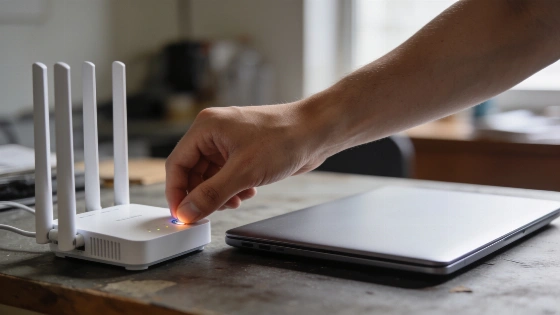
If other websites also fail, check the Wi-Fi or Ethernet connection. Complete a public Wi-Fi sign-in portal before retrying Discord. At home, restart the modem and router using the manufacturer's controls, reconnect and try again. Contact your internet provider if the connection remains unreliable. Discord says antivirus and family-security filtering can block its assets; if that matches the problem, ask the security-software provider how to allowlist Discord.
For your own profile, desktop users can open the cogwheel and select User Settings > Profiles; on mobile, tap the bottom-right avatar and then Edit Profile. Check About Me and select View Full Profile to inspect the preview. Select Save after an intended text edit. Discord does not document re-saving as a fix for this loading error.
A different profile inside one server can be intentional. On desktop or the web, right-click your avatar in a server text channel and select Edit Per-server Profile. Review the server-specific content and select Save Changes after an intended edit. Nitro's server-specific avatars, banners and bios can differ from your global profile.
If loading failures come with desktop rendering problems or lag, open User Settings > Advanced and turn off Hardware Acceleration. Restart Discord and retry the profile. This checks rendering performance without changing profile permissions.
Reinstall only after lower-risk checks
A clean reinstall is a later step because it removes local installation or app data. On Windows, quit Discord from the system tray and end its remaining processes. Press Windows + R, enter %appdata%, then delete the Discord folder there. Open Run again, enter %localappdata% and delete its Discord folder. Restart Windows, download the installer from Discord's official download page and install the app again. That page also provides official mobile store listings.
On Android, open Settings > Apps > See all apps > Discord > Uninstall and tap OK. Reinstall from Google Play, sign in and retry. On iPhone or iPad, touch and hold Discord, select Remove App > Delete App and tap Delete. Reinstall through the App Store, sign in and retry. Removing only the Home Screen icon does not reinstall the app.
If the error persists, take a screenshot and record which profiles and clients are affected. Note the exact error, your client and platform, the connection used, when the problem occurs and which fixes you have tried. Include what you expected to happen and what happened instead.
Open Discord's Help Center request form and select Sign in. Its credentials are separate from your Discord app login. If needed, select Sign Up, enter your name and email, select Sign up, then select Activate account in the welcome email. After signing in, choose Submit a request > Help & Support. Add the error details and screenshot, then select Submit. For a reproducible bug, choose Bug Reporting under What can we help you with? Include reproduction steps, expected and actual results, client information and relevant attachments, then submit the report.
You cannot determine whether someone blocked you from this message alone. Reaction or direct-message tests also do not prove what caused the profile error. Nitro is not needed to reload Discord, clear its cache or compare supported clients; basic profile editing is available without a subscription, while custom personal banners and custom per-server profile features require Nitro.
For your own banner, full Nitro that includes custom banners is required. Select Change Banner in the profile editor and upload a PNG, JPG or animated GIF under 10 MB and at least 680 × 240 pixels. Crop it and select Apply.
Complete phone verification when Discord displays Verification Required. Select Start Verification, enter a valid mobile number not attached to another Discord account, then enter the SMS code. This addresses the account requirement; if verification fails, follow the steps for Discord phone verification problems.
Current Discord desktop updates require macOS 13 or later. If your Mac runs macOS 12 and cannot upgrade, use Discord in a desktop browser that meets its browser requirements. Moderators do not receive special access to private profile details; profile privacy and Activity Sharing are separate controls.
Topics: