
Google Maps stalls or loses voice on CarPlay with iPhone 18 Pro
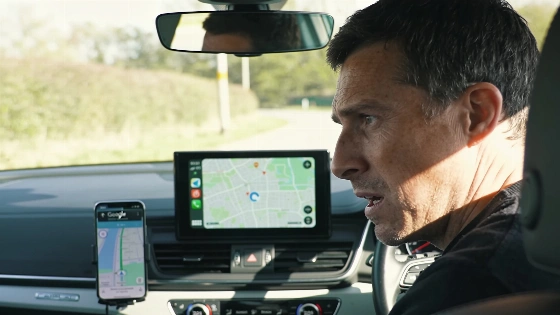
Drivers using the iPhone 18 Pro or Pro Max with CarPlay are running into sudden Google Maps failures. Some see the map freeze up, others watch the blue location dot jump around, and many lose voice directions mid-route. Sometimes all these issues hit at once. Other times, only one crops up. Each symptom points to a different cause, so a blanket reset rarely sorts things out.
It pays to figure out what's actually broken: the map display, GPS, or audio. If the map locks up but music keeps playing, the app session is likely at fault, not CarPlay itself. If the blue dot sticks or jumps between roads, check location permissions or signal strength. When the map updates but the voice goes silent, the problem is usually a muted setting or low volume.
Reports of iPhone 18 Pro Max losing all cellular connectivity-including calls, SMS, and data-surfaced less than three weeks after the device reached customers.
How to track down and fix Google Maps problems on CarPlay
Start by comparing Google Maps on your iPhone and on the car's screen. If only CarPlay is acting up, unplug CarPlay, force-close Google Maps on your phone, then reopen it and reconnect. If the map still won't move, try Apple Maps in the same spot. This helps you see if the problem is with Google Maps or with CarPlay as a whole. According to a CNET investigation, there's no confirmed bug with Google Maps or CarPlay on the iPhone 18 Pro or Pro Max. The only verified defect so far is a total loss of cellular service on some iPhone 18 Pro Max units using AT&T.
If the blue dot is off or stuck, check your iPhone's location settings. Go to Settings > Privacy & Security > Location Services. Make sure location is on, and that Google Maps can use your location with Precise Location enabled. If the dot still jumps or lags, turn off Low Power Mode and keep Wi-Fi on, even if you're not connected. This can help with accuracy. A big blue circle means poor GPS precision, often from parking garages or tall buildings. Move to open ground and check again.
If you're missing voice directions, check that Google Maps isn't muted. Pick a route in the app and tap the sound icon. Muted means no guidance at all, while Alerts gives only basic prompts. For low volume, set navigation volume to 'Louder' in Google Maps settings and check your car's audio. If you hear tones instead of spoken directions, keep Google Maps open with a steady internet connection so it can download voice files.
If routes won't update or maps won't load, make sure Google Maps can use mobile data in your iPhone's settings. Try disconnecting CarPlay and loading a new destination over cellular. If you're driving through dead zones, download offline maps ahead of time.
Apple has stated that the connectivity issue affects only a small number of iPhone 18 Pro Max devices on AT&T, and recommends installing iOS 27.0.1 along with the latest carrier settings to prevent further cases.
Wireless CarPlay and heat slowdowns
Wireless CarPlay brings its own quirks. Make sure both Bluetooth and Wi-Fi are on. If your car supports wired CarPlay, use a certified USB cable and the right port. If problems keep coming back, restart both your iPhone and the car, or forget and re-pair your car in CarPlay settings. Always keep iOS and Google Maps up to date, and check for firmware updates for your car's infotainment system.
Heat can sneak up on you during long drives. Apple says navigation and wireless charging can make iPhones run hot, which can slow things down or pause charging. If issues start when the phone gets warm, try turning off wireless charging to see if things improve. Accessories like the ZEERA SuVolt Gen5, a magnetic car charger with active cooling and up to 25W Qi2.2 wireless charging, are built to keep heat in check during heavy use like navigation and streaming.
When to get more help
If only Google Maps is failing, use the in-app feedback tool to report the problem, including your app version and route. If several phones have the same issue in one car, contact the car or stereo maker about firmware and diagnostics. If your phone fails in different cars that otherwise work, reach out to Apple with your troubleshooting steps. For problems tied to a third-party wireless adapter, contact the adapter's maker with your model and firmware version.
Every CarPlay glitch tests both hardware and software. The best way to fix it is to start with a clear diagnosis-map, GPS, or audio-and work through each step, checking permissions, connections, and outside factors. Apple and Google keep changing their platforms, so new features and new bugs will keep popping up. For now, careful troubleshooting and the right gear are still the best way to keep navigation working on the road.