
Get CarPlay working on iPhone 18 Pro and Pro Max: What actually matters
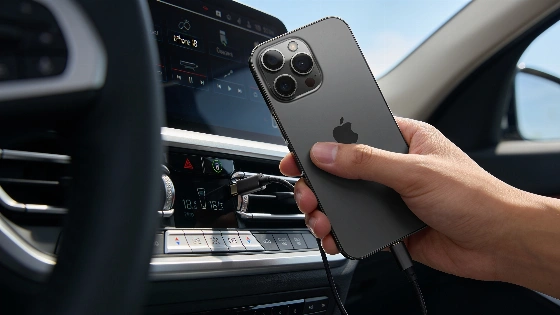
Plenty of drivers run into trouble the first time they try to hook up an iPhone 18 Pro or Pro Max to Apple CarPlay. It's rarely as simple as plugging in a cable or dropping the phone on a charger. The real sticking point is matching your car's infotainment system to the right connection method, then working through Apple's latest permissions and pairing steps.
Many owners expect a quick, smooth setup, but that's not always how it goes-especially if you're moving up from an older iPhone or trying wireless CarPlay in a car that only supports wired. The difference between a working dashboard and a blank screen usually comes down to knowing what your car can actually handle and setting things up in the right order.
Apple CarPlay compatibility depends not only on your iPhone model but also on your vehicle's infotainment system, which may support only wired, only wireless, or both types of CarPlay connections.
Check your car and iPhone before you start
Apple lists both iPhone 18 Pro models as CarPlay-ready, but as of now, Apple's own support pages and official vehicle lists haven't been updated to confirm these devices. You'll need to check your car's model year, trim, and stereo to see if CarPlay is supported. Compatibility depends on both the iPhone and the car's infotainment system. Apple's official vehicle list and your owner's manual are still the best places to start, but watch out: some automakers only allow CarPlay through certain connection types.
Make sure Siri is turned on and your iPhone is running the latest public iOS. Your car should be parked and running, with any infotainment updates installed. Skipping these steps is a common reason for setup failures and wasted time.
Wired or wireless: How to connect CarPlay
For wired CarPlay, unlock your iPhone and find the CarPlay-enabled USB port in your car. It's usually marked with a CarPlay or smartphone icon. Use a USB-C data cable to connect. The first time you plug in, follow the prompts on both your phone and the car's screen. Approve CarPlay access and allow use while locked if asked. If CarPlay doesn't pop up, open it from the car's menu.
Wireless CarPlay takes a few more steps. Turn on Bluetooth and Wi-Fi on your iPhone. Put your car into wireless CarPlay pairing mode-this is usually in the phone-connection menu or by holding the voice-command button on the steering wheel. On your iPhone, go to Settings > General > CarPlay and pick your car from the list. Complete the pairing steps, check any codes, and approve CarPlay on both screens. Only cars with wireless CarPlay will let you do this; just putting your iPhone on a MagSafe charger won't start a connection.
A listing for the CarPlay Widget Speedometer app on the Apple App Store specifies iOS 18.0 or newer as a requirement, but this is a third-party app requirement and does not represent Apple's official CarPlay system requirements.
If you're switching from an older iPhone, treat the iPhone 18 Pro as a new device in your car's phone list. This helps avoid leftover pairing issues. Wired CarPlay is still the most reliable way to get started and fix problems, while wireless CarPlay works best in cars that clearly support it and for drivers who want convenience over certainty.
What goes wrong-and how to fix it
Even with the right gear, CarPlay setup can fail for simple reasons. For wired connections, bad cables or faulty USB ports are common problems. For wireless, double-check that Bluetooth and Wi-Fi are on, the car is in pairing mode, and Auto-Join is enabled. Restart both your phone and the car if things stall. Make sure Siri and CarPlay permissions are set. If CarPlay still won't show up, check Screen Time restrictions-these can quietly block access.
Wireless CarPlay won't charge your phone by default. Use a compatible charger like the ZEERA SuVolt Gen5 Qi2.2 25W active cooling magnetic car charger to keep your iPhone powered while driving. If you're weighing the iPhone 18 Pro Max, including its hardware changes and early software quirks, our earlier coverage has more details.
Apple's official setup steps, last checked on October 7, 2026, are still the reference point. But real-world success depends on matching those instructions to what your car can actually do. If you skip compatibility checks or rush through setup, you're likely to end up with a blank dashboard. For drivers who want CarPlay to work right the first time, careful prep-not luck-makes all the difference.