Fix Rob Run FPS Drops Before Lowering Graphics Quality
A mouse-triggered frame-rate collapse is a reason to test the polling rate first. Check drivers and overlays next; loading freezes and crashes need separate steps.
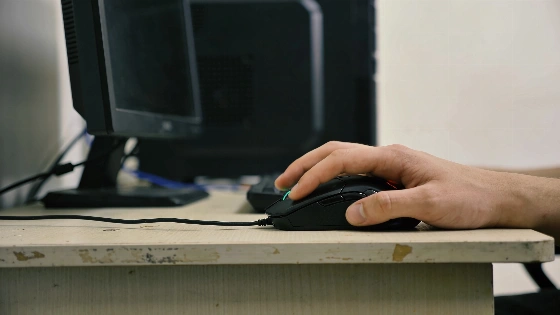
When moving the mouse drives Rob Run down to single-digit FPS and performance recovers after you stop, lower the polling rate before changing image quality. A Roblox Developer Forum participant reported major drops with a 1,000 Hz mouse setting and said they were less noticeable at lower polling rates; 1,000 Hz means the mouse reports its position 1,000 times per second. Treat this as a targeted test, not a guaranteed fix: the report was one person's observation, not a controlled benchmark. That symptom calls for a different test from a loading freeze or repeated crash.
Keep your current graphics settings as a reference. Change one setting at a time, then repeat the same test under similar conditions so you can tell which adjustment affected performance.
Test the mouse polling rate first
Open your mouse configuration software, such as Logitech, Razer, or Bloody, and note the current value for Polling Rate. Select a lower rate, then return to Rob Run and repeat the mouse movement that caused the slowdown. Leave graphics settings unchanged for this comparison.
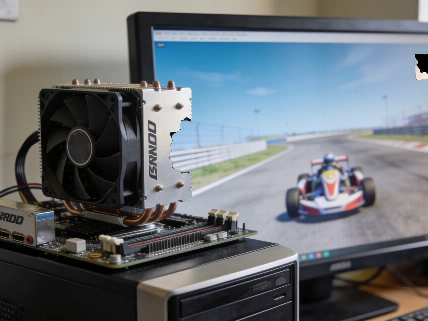
If the drop remains, try the follow-up checks separately. Update the graphics driver and repeat the same movement. If your PC uses a 13th- or 14th-generation Intel CPU, check the BIOS support page for your exact motherboard model and revision. Gigabyte's support documentation describes microcode 0x12B as the final mitigation for the referenced Vmin Shift Instability issue. It lists a later 0x12F update, dated May 27, 2025, for certain boards. The B760 DS3H support page says 0x12F further improves system conditions that can contribute to the issue; BIOS versions are board-specific. This is a separate stability check, not a demonstrated fix for mouse-triggered FPS drops. If Discord or GeForce Experience overlays are active, disable them and compare the same scene without the overlay.
Record each result. Changing resolution while disabling an overlay makes it difficult to identify which change affected performance.
Check visibility and performance consistently
Choose a scene you can revisit. Note your position and viewing direction, then inspect readable text and small details while stationary and in motion. Check separately whether movement pauses and whether the image remains clear enough to follow.
- Stand still and inspect the same scene without moving the mouse.
- Repeat the same camera movement and note any interruptions.
- Move through the same route and check whether details remain readable.
- Repeat the sequence before keeping a change.
Write down your original resolution before testing an alternative. Change resolution alone, then inspect the same scene and repeat the movement test. Keep the new value only if the improvement is repeatable and the image remains readable; otherwise, restore the original.
PC performance results depend on the tested configuration. An earlier compatibility project test for The Order: 1886 averaged 52.4 FPS on an RTX 3070, while broader stability checks remained unfinished.
Keep a short log of each adjustment and the symptom it targeted. Record whether movement stayed continuous, whether details remained clear, and whether a second pass produced the same result. Restore the previous value if a change makes no useful difference.
Check requirements and handle crashes separately
Compare your PC with the game's listed requirements. The operating system must be Windows 10 64-bit or later. DirectX 11 is listed for both tiers, and each tier requires 20 GB of available storage.
| Component | Minimum | Recommended |
|---|---|---|
| Processor | Intel Core i5-6600K / AMD Ryzen 5 1600 | Intel Core i5-9600K / AMD Ryzen 5 3600 |
| Memory | 12 GB | 16 GB |
| Graphics | GTX 1050 Ti / RX 580 / Arc A380 | RTX 2070 / RX 5700 XT / Arc B570 |
| Operating system | Windows 10 64-bit or later | Windows 10 64-bit or later |
| DirectX | 11 | 11 |
| Available storage | 20 GB | 20 GB |
A game that freezes during loading needs a repair check before visual comparisons. Check your connection, restart Rob Run and Steam, update the graphics driver, then verify the game files. In Steam, open Rob Run's properties and select Properties > Installed Files > Verify integrity of game files.
For repeated crashes, close unused applications and restart the PC. Errors E-0101 and E-0110 concern access to server configuration or startup data; check the internet connection and confirm that websites load. Error E-0124 is an internal asset-loading error, and the guide recommends verifying game files. Lowering image quality will not repair the connection errors.
If crashes continue, collect your hardware specifications and the exact error text. Describe what happened immediately before the crash, include a screenshot or video when possible, and list the fixes already tried. Keep crashes distinct from frame-rate drops in the report.
Press Esc to find your UID on the right beneath your character name. Select Copy UID and include it when sending a report through the game's support contact options, along with the steps that reproduce the crash.
Topics: