How to Fix Red Dead Redemption 2's "Unknown Error FFFFFFFF"
A headset can interfere with Red Dead Redemption 2 even when it works normally in Windows. Check a physical audio output first, update an outdated graphics driver, then compare Vulkan with DirectX 12 without risking your settings.
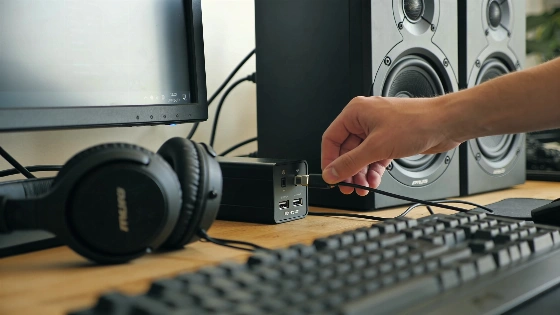
Windows may play through a headset without trouble, yet RDR2 can behave differently when it opens an external audio device. Switching to working speakers is a reversible first test.
Rockstar identifies Error Code FFFFFFFF as a Red Dead Redemption 2 on-PC support issue. Its guidance recommends checking external audio devices, graphics drivers and advanced graphics settings. The error message does not identify a specific component as the cause, so an audio-output change is a diagnostic test rather than proof that a headset is responsible. Rockstar's dedicated FF FFFFFF troubleshooting guidance remains available through its support portal.
The "Unknown Error FFFFFFFF" message reports a crash but does not identify the component responsible. The game may stop before the main menu or close during gameplay, so repeat the same activity that usually triggers the failure after each change.
Reaching the menu alone does not confirm a fix.
Check the audio output before changing graphics settings
Start with a physical playback device that works. This tests whether the headset or its connection affects startup without uninstalling sound drivers.
- Finish any calls or recordings. Note your current output and keep a working playback device available.
- Close RDR2. Open Start > Settings > System > Sound. Under Output, select working speakers or another physical playback device, then play a short audio clip.
- Disconnect the test headset or its USB receiver. Confirm Windows still uses the alternative output. If the headset is your only usable device, leave it connected until another output is available.
- Launch RDR2 normally. Once the main menu loads, reconnect the headset and select it under Windows Sound > Output. Repeat the activity that previously caused the crash.
- If reconnecting brings back the error, use the working alternative for that session. If the comparison changes nothing, restore your original output.
- Optional for Voicemeeter users: close RDR2 and exit Voicemeeter. If it remains running, open Task Manager with Ctrl + Shift + Esc, select its process and choose End task. Select the physical speakers or headset directly in Windows, confirm audio works, then relaunch RDR2. Reopen Voicemeeter and restore your usual routing after closing the game.
If RDR2 stays stable, keep the working output for that session. Restore audio changes that made no difference before moving on.
Update the graphics driver if it is outdated
The graphics driver supports the Vulkan and DirectX 12 options used by RDR2. An outdated driver can affect either setting, so a normal supported update is a reasonable check before replacing game files or using driver-cleaning tools.
If you already have the current supported driver, repeated installation is unnecessary. If the crash began immediately after an update, record that version for the GPU vendor instead of copying an older one from a screenshot.
- Right-click Start and open Device Manager. Expand Display adapters and note the gaming GPU's full model name. On a laptop, check its manufacturer's model page if the listed adapters are unclear.
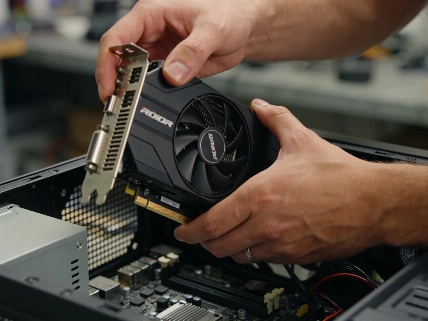
- Right-click the gaming adapter and open Properties > Driver. Record the version and date. Any pictured hardware or versions are examples rather than requirements for your PC.
- Download the package that matches your GPU and Windows version. For manufacturer-customized laptop graphics, check the laptop support page first.
- Choose the matching package from the GPU maker: NVIDIA's supported Game Ready Driver, AMD's Radeon graphics package rather than a chipset package, or the relevant Intel package or Intel Driver & Support Assistant.
- Save your work and close open apps before installing. Leave optional factory-reset or clean-install settings off. Wait for the installation to finish, restart Windows, then retest RDR2.
An installer showing "Ready to install" has not confirmed that the update completed. Check the result on your PC. If FFFFFFFF remains, compare the graphics APIs instead of reinstalling the same driver repeatedly.
Compare Vulkan with DirectX 12
If working audio and a current driver do not resolve the crash, test the alternative graphics API. Back up Settings first. Change only the API value and remove only the named cache files; leave Profiles, saved games and the rest of the Red Dead Redemption 2 folder untouched.
- Close RDR2 and its launcher. In File Explorer, open Documents > Rockstar Games > Red Dead Redemption 2 > Settings. Use Windows' actual Documents location, including OneDrive if the folder was redirected.
- Create a separate RDR2 Settings Backup folder on your Desktop. Copy the live Settings folder's contents there while leaving the originals in place. Confirm the backup contains system.xml.
- In the original Settings folder, open system.xml with Notepad. Press Ctrl + F, find kSettingAPI_, and note its value. If the file or entry is missing, stop rather than copying another PC's configuration.
- If the current setting uses Vulkan, change only the API value so the line reads kSettingAPI_DX12. If it already uses kSettingAPI_DX12, change that value to kSettingAPI_Vulkan. Save as system.xml, not system.xml.txt, and leave the surrounding XML unchanged.
- In the live Settings folder, delete only files beginning with sga_, if present. Leave system.xml and all other files or folders alone. This is a File Explorer operation, not an XML edit.
- Reopen the launcher and RDR2. Let the cache rebuild, then repeat the activity that failed. Keep the alternative API only if the game stays stable through a normal session. If the crash returns or performance worsens, close the game and launcher, then restore the backed-up system.xml.
A different ERR_GFX_STATE message has its own RDR2 graphics-state checks. Rockstar lists a separate support article for "Red Dead Redemption 2 on PC crashing with ERR_GFX_STATE error," dated July 26, 2024. Record the new message rather than treating every crash as FFFFFFFF.
What to check if the error persists
For a modified installation, preserve saves and mod settings, then use the mod manager or each mod's removal instructions to test unmodified Story Mode. Avoid deleting DLLs by filename alone. If game files were accidentally removed or replaced, use the launcher's integrity check; Steam's instructions are Properties > Installed Files > Verify integrity of game files. File repair does not replace proper mod removal.
For Online-only crashes, compare Story Mode with a fresh normal Online session and note whether other players disconnect at the same time. FFFFFFFF alone does not prove another player caused the crash, and third-party lobby tools are not a necessary troubleshooting step.
A launcher that closes without this dialog needs broader RDR2 launch checks; that is a different symptom from the Linux keyring issue covered in Epic's launcher update.
When contacting Rockstar Support, include the exact message, launcher, Windows version, GPU and driver, audio device, selected API, and repeatable trigger. Add the results of these checks and mention installed mods, especially if the crash is tied to one mission or continues with both APIs.
Topics: