
Control Your PC from Your Phone: The Best Remote Access Tools
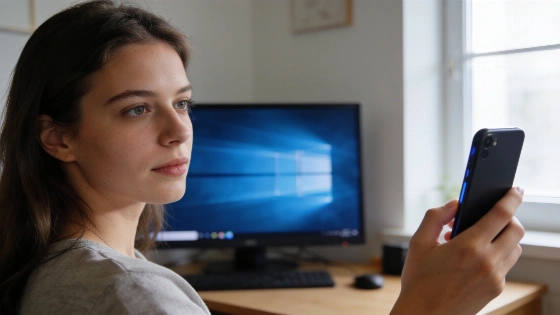
You can run your Windows PC from a café table or your couch. All you need is the right app. Your phone becomes a remote control. You can launch programs, move files, or just wiggle the mouse from across the room.
To enable full remote control of a Windows PC from an Android phone using AnyDesk, users must install a separate control plugin tailored to their device model, which is a crucial step for a seamless experience.
Sometimes you don't need the whole desktop. Maybe you just want a wireless mouse. That's where Unified Remote comes in. Install the server on your PC. Put the app on your phone. Allow the server through your firewall. Now you can point, click, and scroll with your finger. It's simple. Reviews from 2026 say Unified Remote is built for this. You need both the server and the app. The setup guide explains the firewall step clearly.
Need to grab a file? Pushbullet makes it easy. Install it on your Windows PC and Android phone. Log in with your Google account. Turn on remote file access. Now you can browse and download files from your phone. iPhone users can do something similar. Set up an FTP server on your PC and use an FTP client app on your phone. No need for full remote desktop. Recent reviews point out that Pushbullet is best for file and notification transfers. It's not a full remote desktop tool. The developers now focus on file sharing, not full control.
On the remote access market in 2026, solutions are segmented by task: some offer full screen and input control, others focus on lightweight mouse or remote control, and some are dedicated solely to file transfer. This explains why articles often compare tools from different categories rather than a single universal solution.
Pick the tool that fits your needs. Full remote access is for when you need to use your PC like you're sitting in front of it. Mouse apps are for quick, wireless control. File tools are for grabbing documents without the fuss.
Want to control your Android phone from your PC? Try AirDroid, Pushbullet, or Samsung Flow. Need to connect to another Windows computer? Windows 10 and 11 have Remote Desktop built in. Just turn it on.
Remote access isn't just for IT pros anymore. Free apps like AnyDesk, Unified Remote, and Pushbullet make it easy for anyone. The trick is knowing which tool matches your routine. If you want flexibility, these apps keep your PC close-no matter where you are.