
Stellar Repair for Outlook vs. its online service: Which tool really saves your PST files?
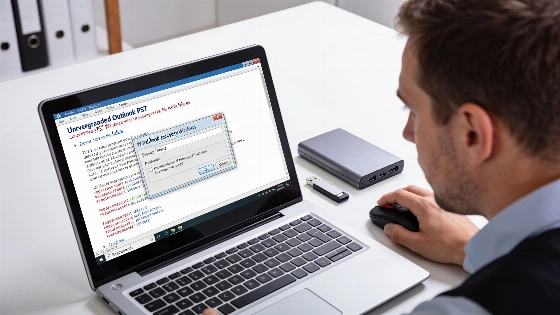
A corrupt Outlook PST file can bring work to a halt. Emails vanish. Contacts disappear. Teams get stuck. Time matters. When Microsoft's own repair tool can't help, users scramble for something that works. The real test? Which recovery tool actually brings your data back-without making things worse.
Microsoft officially recommends backing up your PST file before attempting any repair, and advises scanning a copy rather than the original to minimize risk.
The online service is stripped down. No install. No Windows needed. You upload your broken PST through a secure browser page. Stellar's cloud does the repair. You download the fixed file. This is a lifesaver for Mac or Linux users, or anyone who just needs a one-time fix. But there's a catch. Your file has to travel over the internet. Speed depends on your upload connection.
Testing the online tool shows its strengths and limits. Small PSTs upload fast. The web dashboard is simple: pick your file, upload, wait, download. For quick, single-file jobs-especially off Windows-it's hard to beat. But big files take longer. You lose fine control and advanced export options. The online service can't fully replace the desktop app. It's a fast fix for simple cases.
Microsoft community guidance in September 2026 emphasizes that users should not attempt to repair or convert a PST file without first recording the exact error message, reflecting a cautious approach to troubleshooting rather than immediate file modification.
Microsoft's SCANPST.exe often fails with big or badly damaged files. Sometimes it freezes. Sometimes it throws away unreadable data. A WPS Office repair guide says the Inbox Repair Tool is common for fixing PST and OST files, but it struggles with heavy corruption or files over 50 GB. That's why third-party tools like Stellar are still needed.
For companies moving to the cloud, the Technician and Toolkit editions let you export mailboxes straight to Exchange or Microsoft 365. You can split huge PSTs or shrink attachments. The online service can't do that.
So which path should you take? It depends on your setup and what matters most. The desktop app is best for big files, deep corruption, or strict privacy needs. Everything stays local. IT teams get advanced recovery and migration tools. The online service is perfect for quick, one-off repairs, especially if you can't install software or aren't on Windows.
Each tool has trade-offs. The desktop app handles any file size, offers flexible exports, and never touches your original file. But it's Windows-only, and advanced features cost more. The online service works on any OS, needs no install, and is easy to use. But it's limited by your internet speed and lacks advanced controls.
Stellar Repair for Outlook is the go-to when built-in tools fail and the stakes are high. For a fast browser fix on a small PST, the online service works. But for IT pros, help desks, or anyone with big, sensitive, or mission-critical Outlook data, the desktop app-especially the Technician or Toolkit versions-remains the top choice for privacy, reliability, and deep recovery. When your Outlook archive is at risk, pick the tool that fits your file, your system, and your risk level. Convenience and power are not the same. That difference can save your inbox.